
What can I manage?
Once you have requested storage for your project, you can manage your storage requests through the resource portal. You can modify your storage quota, manage a pending request, and reassign FDMs on existing storage.
Increase Storage Quota
You can request additional storage by clicking the Use/View button in the actions column.
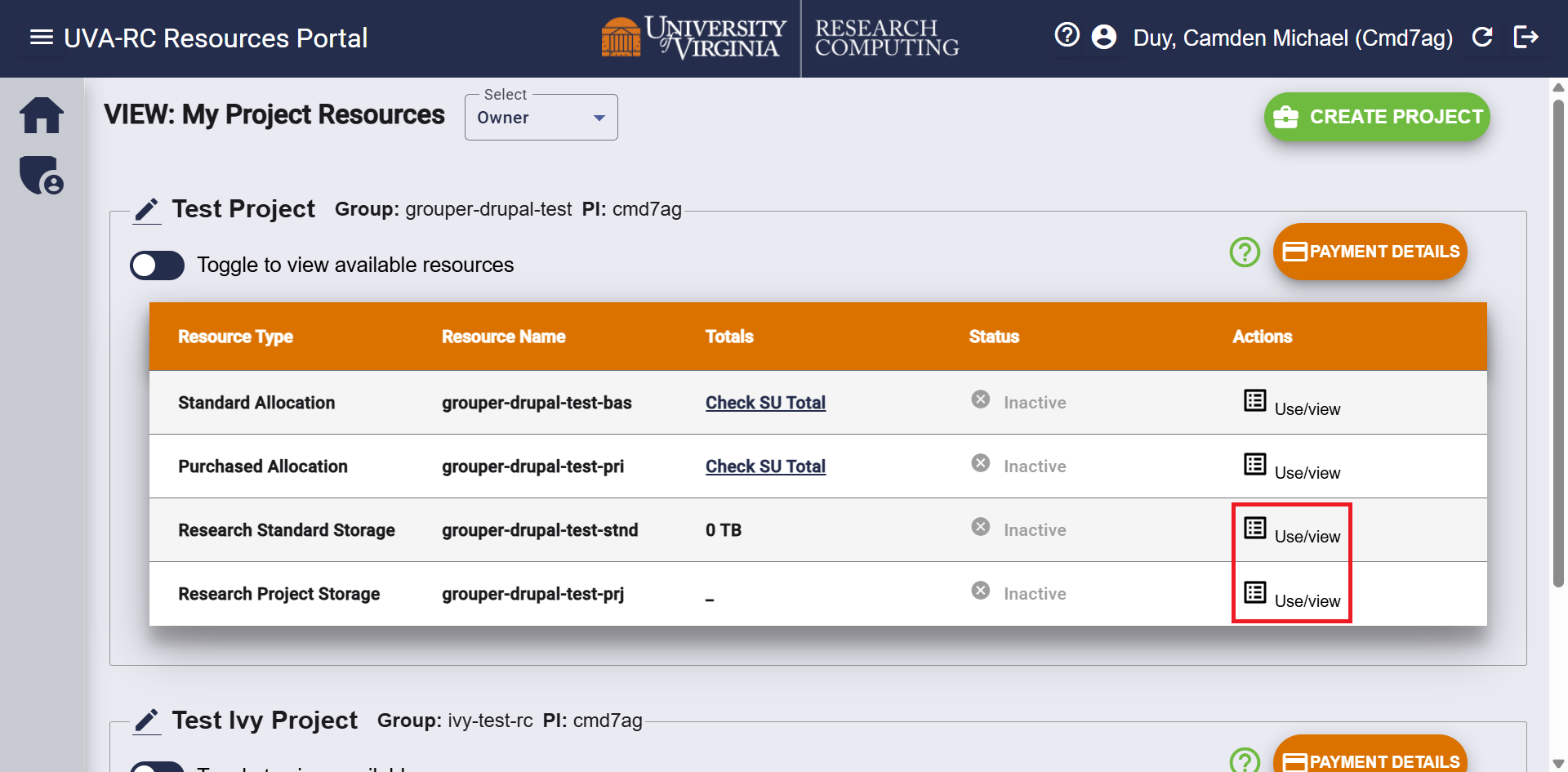
To request additional storage, select Schedule Storage, and enter the amount in Gigabytes (GB) you want to raise the quota by, or use the calculator icon on the far right of this field to convert your request from Terabytes (TB).
Your total storage quota will be the sum of each Scheduled Storage action you have taken. This is displayed in the Totals column in the project. See below for more information on viewing your storage usage.
Decrease Storage Quota
You can decrease your storage quota by clicking the Use/View button in the actions column.
Then, click the green Decrease Storage button on the screen. In the form, move the slider from right to left to adjust how much you would like to decrease your storage quota. The right New Storage box will depict what your storage quota will be after the request is fulfilled.
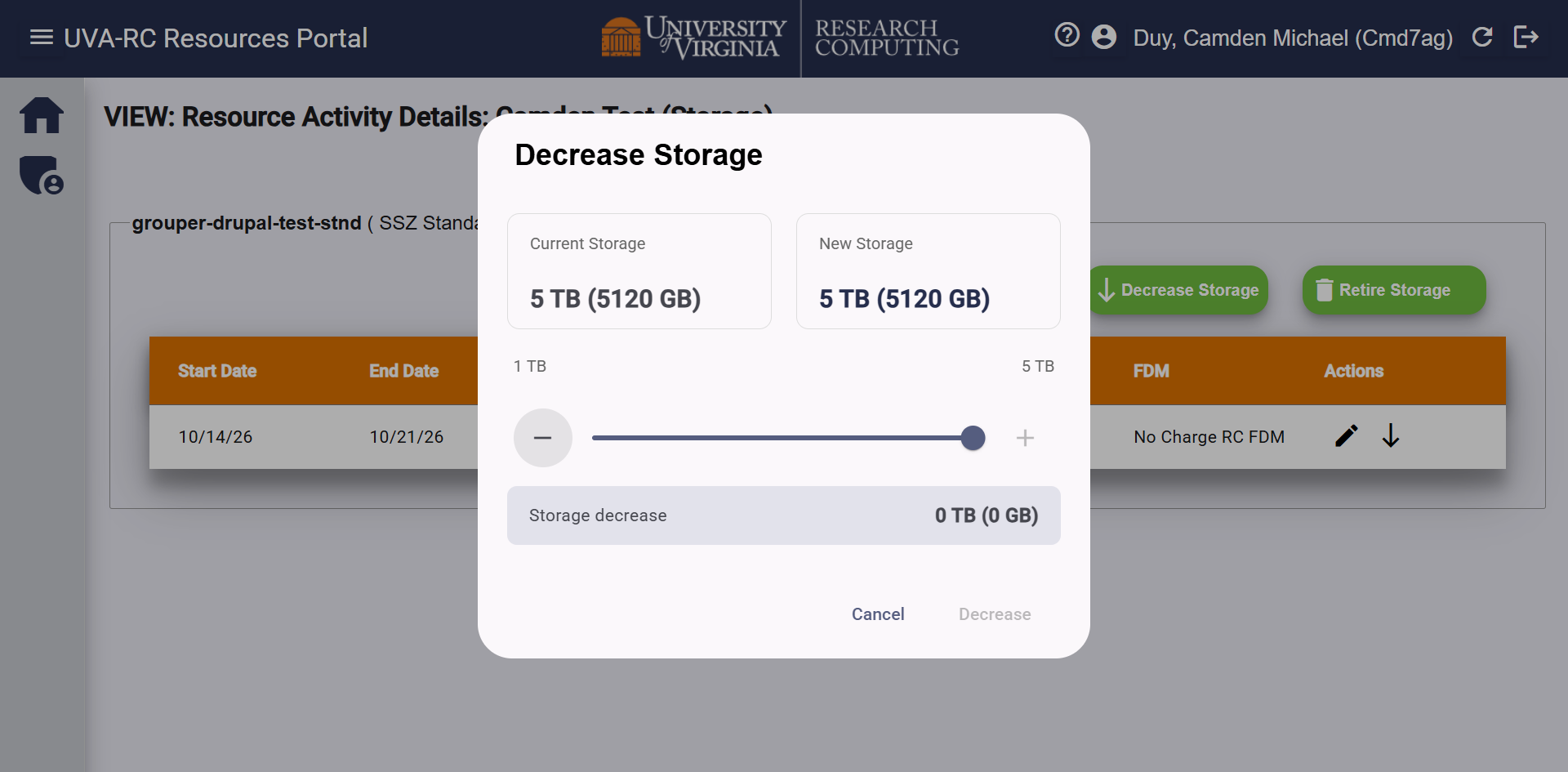
This will generate a ticket, and our user support team will work on decreasing the storage quota within our system. Once completed, a member of our team will follow up with you to update the new storage quota within the resource portal. What we will ask is:
- Request additional storage that matches the new storage quota after the decrease.
- For example, if you wanted to reduce your quota from 10TB to 4TB. We'll ask you to use the resource portal to schedule 4TB of storage. This will leave you with 14TB total.
- Retire the previous storage using the down arrow icon to the right of the row.
- Using the previous example, you should have the initial 10TB of storage in one row, and the new 4TB of storage in a second row. Retire the 10TB of storage, which will leave you with the 4TB of storage in the resource portal.
You may also follow these steps on your own to decrease your quota, without using the Decrease Storage button. However, it's important that you do not retire all of your storage without leaving some active. If your quota is zero, then we will delete any remaining data in the folders and deprovision the storage share. Using the Decrease Storage button ensures that our team won't deprovision the full share.
Edit Storage
Storage requests can be edited. To view the edit window, navigate to the storage page using the Use/View button.
Then, click the pen icon on a storage activity you want to modify.
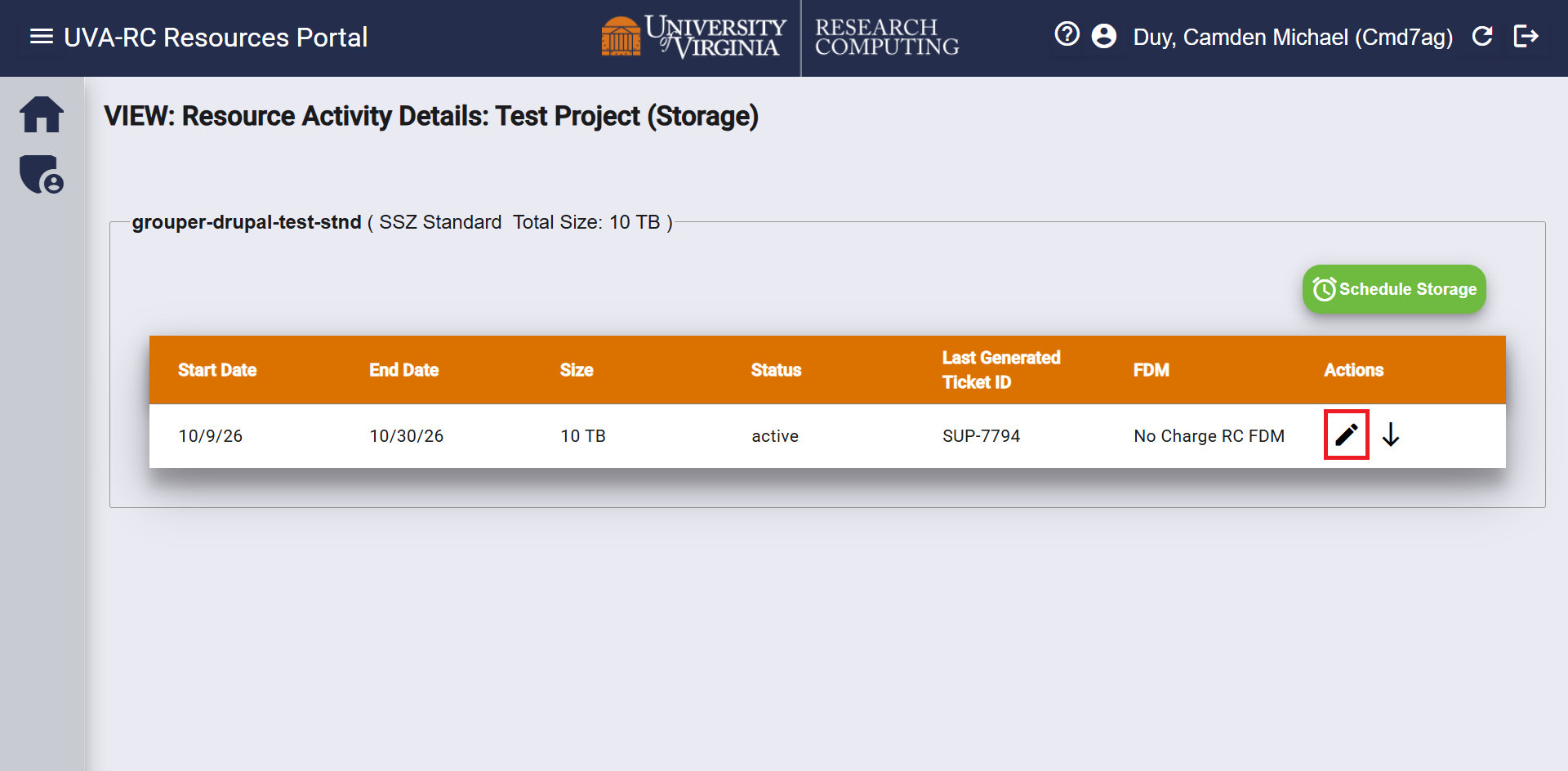
Within the form, you can change:
- The end date on the storage activity
- The FDM associated with that storage charge
- See our Add Payment guide to add/edit FDMs on your project.
Note: You cannot modify the storage quota using this edit feature. See above to increase or decrease your quota.
See Storage Usage
In the portal, you can view your total storage quota, but if you want to see how much of your storage you are using:
For SSZ storage, you can run the command hdquota at the command line when logged into UVA HPC. You can also check the disk usage utility on Open OnDemand.
For HSZ storage, you will need to log into your VM to see the current usage.