Introduction
UVARC GenAI is a UVA-hosted multimodal LLM and VLM server available to UVA research computing members with an active research computing account. Like other common multimodal platforms (e.g., ChatGPT or Claude), UVA RC GenAI can be used to assist with research, coding, and writing support, all data is securely processed in-house at UVA. Currently, UVARC GenAI is running the Kimi K2.5 model and is accessible via browser and API. UVA RC GenAI is only being offered to research projects; it is not available for academic or administrative purposes.
Getting Started
Below are the first steps needed for all users regardless of access method:
Note: Accessing UVA RC GenAI requires an active UVA computing ID, research computing account and Eservices password for Netbadge authentication. Duo two-factor authentication is required for browser access.
-
If you don’t have an RC user account please see How to get access to HPC Services
-
Once you have an RC account, navigate to UVA RC GenAI
-
Login with Computing ID and EServices password
-
Complete Duo 2FA
Using the Browser Interface (OpenWebUI)
After signing in, you should have browser access to UVARC GenAI through the OpenWebUI interface.
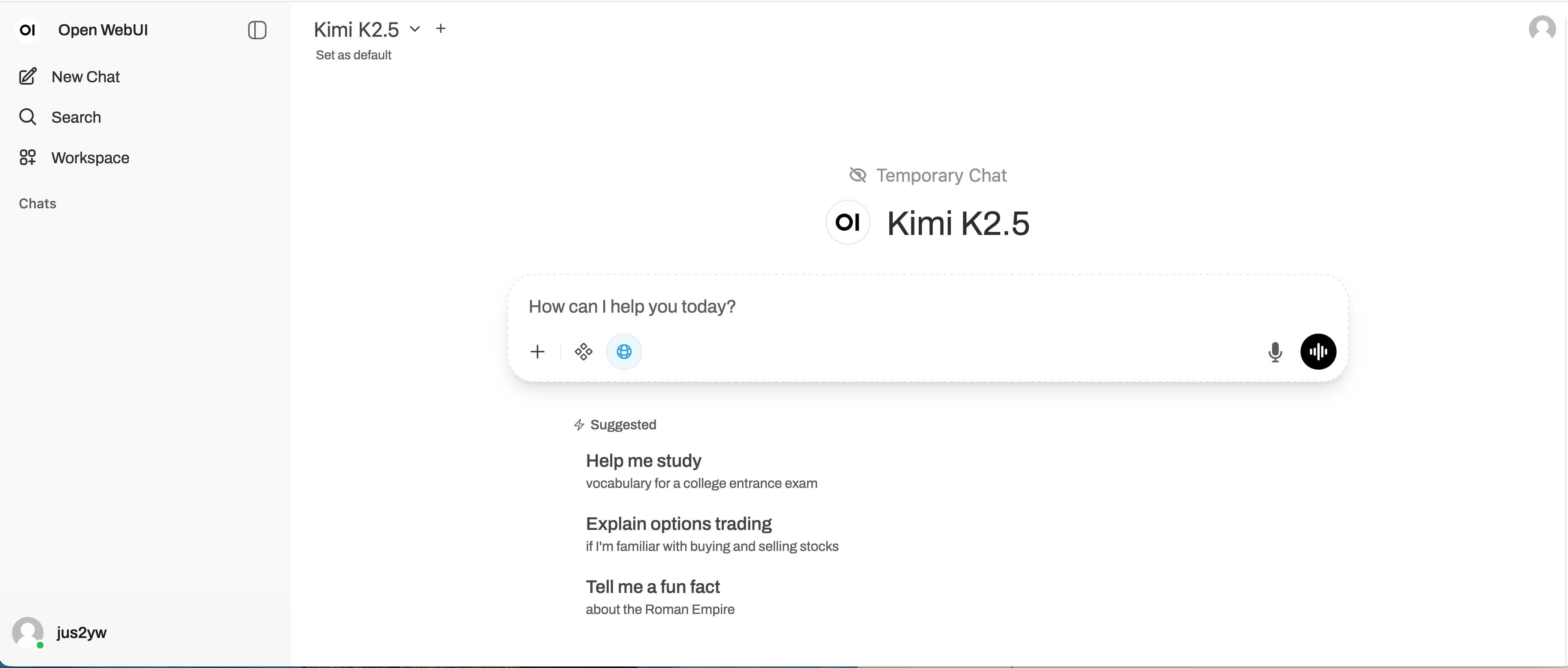
Here, you can chat through the conversational interface, adjust integrations (e.g., web search), or even upload and attach content to the chat session.
Files can be loaded into the web interface – supported extensions include: pdf, docx, txt, md, csv, png, jpeg, jpg, pptx, xls, xlsx, json, sh, html, htm, xhtml, js, and py.
Note: Chats are not saved. Conversation history disappears when you close the browser tab, sign out, or if the session expires.
You can export your work in either Json, txt, or pdf formatting. Select the three dotted icon (top right) then ‘Download’ to select a format. Chats can also be archived or copied to the clipboard by selecting the desired option.
API Access
API access to UVA RC GenAI is useful for users who want to integrate the LLM into their code.
Getting your API key
-
Sign in to UVA RC GenAI (see Getting Started)
-
Click profile (top right) → Settings → Account
-
Select “Show” next to “API Keys”
You will have the option to view, copy or create a new API key.
Securely storing your key
Use environment variables to safely store your key (e.g., export UVARC_GenAI_API ="your-key-here"). Make sure to never commit keys to code repositories, and regenerate keys in UVA RC GenAI browser if compromised.
Please note that to run your code you need to be on a HPC compute node.
Code examples
curl
export  UVARC_GenAI_API ="<yourAPIkey>"
curl -X POST "https://open-webui.rc.virginia.edu/api/chat/completions" \
     -H "Authorization: Bearer $UVARC_GenAI_API" \
     -H "Content-Type: application/json" \
     -d '{"model": "Kimi K2.5", "messages": [{"role": "user", "content": "Hello"}]}'
Python with OpenAI library
import os
import openai

client = openai.OpenAI(
    base_url="https://open-webui.rc.virginia.edu/api/",
    api_key=os.environ.get(" UVARC_GenAI_API  ")
)

response = client.chat.completions.create(
    model="Kimi K2.5",
    messages=[{"role": "user", "content": "Hello"}]
)

print(response)
Python with requests
import os
import requests

response = requests.post(
    "https://open-webui.rc.virginia.edu/api/chat/completions",
    headers={"Authorization": f"Bearer {os.environ.get('UVARC_GenAI_API')}"},
    json={
        "model": "Kimi K2.5",
        "messages": [{"role": "user", "content": "Hello"}]
    }
)
Jupyter Notebook reference
Download ZIP file
Policies and Limitations
What type of research data can you submit:
-
Approved: Any data suitable for Standard Security Zone (SSZ) (Rivanna/Afton), including sensitive university research data.
-
Restricted: No Highly Sensitive, PHI, or other controlled access data types.
-
When in doubt: Contact us here for support before submitting
UVA RC GenAI aligns with the University’s GenAI Use Guidelines. These can be found at Using AI at UVA: Guidelines & Terms of Use
What’s logged:
-
NOT prompts or responses
-
Metadata may be retained for to better understand number of users, number of request, demand for service, tokens generated and other metrics that will aid in ensuring a quality deliver of service.
-
Logs are accessible to admins only
Where you can access UVARC GenAI from:
-
On-grounds: Direct access available
-
Off-grounds: VPN required, must run from a standard security zone HPC node
Usage limitations:
Rate limits: 60 requests per minute
Frequently Asked Questions
Can I use OpenWebUI to access other LLM models?
No, to help researchers adhere to UVA AI and data policy this feature has been disabled with the Beta Release.AI
Due to Single Sign On configurations this feature is not available. However, closing out he browser page should be sufficient.
I lost my chat history. Can I get it back?
No. Chats are not saved. Use copy/paste for persistence.
Do I need a new API key for each project?
One key per user is sufficient. Rotate if needed via UVA RC GenAI settings.
Can I share my API key?
No. Keys are tied to your Computing ID and should not be shared.
Why can’t I connect from off-grounds?
VPN is required for off-campus access to comply with security policies.
Can I use this for class assignments?
This system is restricted to UVA research.
Is my data used to train the model?
No. The model is static, and your data is not used for training.
What models are available?
Currently only Moonshot Kimi K2.5 is supported.
Getting Help
This is an early-access deployment and support is limited. Please contact us through our support request form with any questions, concerns, or suggestions.